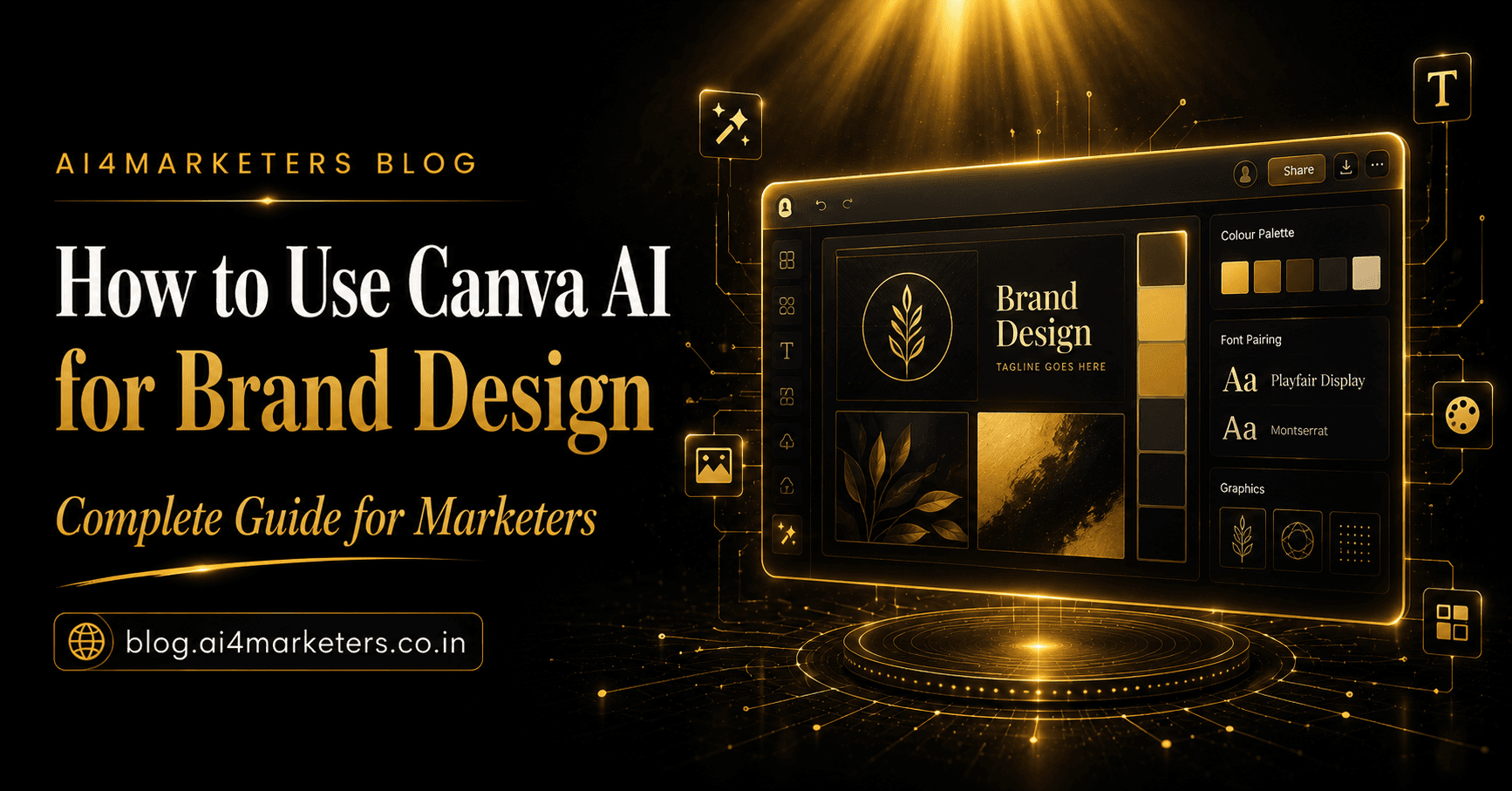
How to Use Canva AI for Brand Design — Complete Guide for Marketers
Most marketing teams spend 40-50% of their content time on design.
Resizing posts for different platforms. Creating festival creatives. Building presentation decks. Designing ad creatives. Making carousels. Updating banners.
None of these tasks require a professional designer — but they eat up hours every week.
Canva AI changes this equation completely. With the right workflow, a marketing team can produce a week's worth of branded visual content in a single afternoon — without any design experience.
This guide covers every Canva AI feature with real workflows, prompts, and practical tips built specifically for marketing teams.
Setting Up Canva for Brand Success
Before using any AI features, set up your Brand Kit. This is the single most important step — it ensures every AI-generated design automatically uses your brand colors, fonts, and logos.
Setting Up Your Brand Kit
Step 1 — Access Brand Kit
Go to Canva → click Brand Hub in the left sidebar (requires Canva Pro).
Step 2 — Add your brand colors
Click + Add colors → enter your hex codes:
For a brand like AI4Marketers:
Primary:    #B8922A (gold)
Secondary:  #0E0C0A (dark background)
Accent:     #F2EBE2 (cream/paper)
Muted:      #7A7068 (muted text)
Step 3 — Upload your logo
Upload your logo in PNG format with transparent background. Add both light and dark versions if you have them.
Step 4 — Set brand fonts
Add your primary and secondary typefaces. Upload custom fonts if needed (Canva Pro supports custom font uploads).
Step 5 — Create brand templates
Design 3-5 master templates for your most common content types:
- Instagram post (1080x1080)
- Instagram Story (1080x1920)
- LinkedIn post (1200x627)
- LinkedIn carousel (1080x1080)
- Email header (600x200)
Once Brand Kit is set, every AI-generated design pulls from these settings automatically.
Canva AI Features — Complete Walkthrough
Magic Design
Magic Design is Canva's most powerful AI feature for marketers. Describe what you need and Canva generates a complete, professionally designed layout.
How to Use Magic Design
- Go to Canva → click Create a design
- Select your format (Instagram Post, LinkedIn, etc.)
- Click the Magic Design wand icon
- Type your prompt
- Choose from generated layouts
- Edit text and images
Magic Design Prompts for Marketing Teams
Social media post:
Premium dark background post announcing an
AI workshop for marketing teams. Gold accents.
Minimal and professional.
Product launch:
Product launch announcement for a skincare brand.
Clean white background. Pink and gold accents.
Premium and feminine.
Festival post:
Diwali celebration post for a corporate brand.
Traditional elements with modern minimal design.
Gold and dark red color scheme.
Educational carousel cover:
LinkedIn carousel cover about AI marketing tools.
Dark background. Bold typography.
Professional and authoritative.
Sale announcement:
Flash sale announcement. Urgent and exciting.
Bold typography. High contrast colors.
CTA button prominent.
Magic Design Tips
- Be specific about mood — "premium", "playful", "minimal", "bold" dramatically change the output
- Mention your industry — "for a fintech brand" gives better results than generic prompts
- Include color direction — "dark background with gold accents" guides the AI
- Generate multiple options — Canva gives you 8+ variations, always browse all before choosing
Magic Resize
Magic Resize is the most time-saving Canva AI feature for marketing teams. Create one design and instantly adapt it to every platform and format.
How to Use Magic Resize
- Design your post at 1080x1080 (Instagram)
- Click Resize in the top toolbar
- Check all platforms you need
- Click Copy & Resize
- Canva creates separate versions for each size
Platform Sizes to Always Resize To
| Platform | Format | Size |
|---|---|---|
| Instagram Post | Square | 1080x1080 |
| Instagram Story | Vertical | 1080x1920 |
| Instagram Reels | Vertical | 1080x1920 |
| LinkedIn Post | Landscape | 1200x627 |
| LinkedIn Story | Vertical | 1080x1920 |
| Facebook Post | Landscape | 1200x630 |
| Twitter/X Post | Landscape | 1600x900 |
| YouTube Thumbnail | Landscape | 1280x720 |
| WhatsApp Image | Square | 1080x1080 |
Magic Resize Workflow
Design once on Instagram square → resize to all 9 formats above → 30 seconds of work instead of 45 minutes.
Important: After resizing, check each version — text and key elements sometimes shift. Magic Resize gets 80% right automatically. Quick manual adjustments handle the remaining 20%.
Magic Write
Magic Write is Canva's built-in AI copywriter — generate text directly inside your designs without switching to ChatGPT.
How to Use Magic Write
- Click any text box in your design
- Click the Magic Write icon (sparkle)
- Type what you need
- Magic Write generates text directly in the design
Magic Write Prompts for Marketing
Caption for Instagram post:
Write a 2-line Instagram caption for this
product launch post. Tone: premium and exciting.
End with an emoji.
Headline for ad:
Write 3 headline options for a Facebook ad
promoting an AI marketing workshop.
Under 8 words each. Focus on transformation.
Subheading for carousel slide:
Write a subheading for a carousel slide about
"AI tools saving marketers 10 hours per week".
Under 15 words. Clear and benefit-focused.
CTA button text:
Write 5 CTA button text options for a
"request a demo" button. Under 4 words each.
Bio for social profile:
Write a 150-character Instagram bio for
an AI marketing trainer. Include what they do,
who they help, and one CTA.
Text to Image (AI Image Generation)
Canva's text-to-image feature generates custom illustrations and photographs directly inside your design workflow.
How to Use Text to Image
- Click Apps in the left sidebar
- Search Text to Image
- Type your prompt
- Choose style (Photo, Illustration, Painting, etc.)
- Generate → images appear in your design
Prompts for Marketing Visuals
Product lifestyle shot:
Minimalist flat lay of a skincare product on
white marble surface. Natural lighting.
Professional photography style.
Abstract brand visual:
Abstract gold circuit lines on deep black background.
Premium tech aesthetic. No text.
Team/people visual:
Diverse group of marketing professionals in a
modern office, looking at a presentation.
Warm professional lighting. Candid style.
Indian festival visual:
Elegant Diwali diyas arranged on dark background
with gold bokeh lights. Premium and minimal.
No text.
Data visualization illustration:
Abstract upward growth chart made of glowing
gold data points. Dark background.
Premium editorial style.
Text to Image Tips
- Specify "no text" — AI often adds random text to images
- Describe lighting — "warm lighting", "natural light", "studio lighting"
- Mention style — "flat lay", "editorial photography", "minimal illustration"
- Add "no people" or "diverse people" depending on your need
- Generate 4+ variations — quality varies significantly between generations
Background Remover
Background Remover is one of Canva's most practical AI features for product-focused brands.
How to Use Background Remover
- Upload your product photo
- Click the image → Edit image
- Click Background Remover
- Canva removes the background in seconds
- Place on any background color or design
Best Use Cases
Product photography: Remove cluttered backgrounds from product shots → place on brand-colored backgrounds → professional results in 30 seconds.
Team photos: Remove office or event backgrounds → place on brand backgrounds → consistent branded team photos.
Logo cleanup: Remove white backgrounds from logos → use on any colored background cleanly.
Festival overlays: Cut out product → place on festive background designs → instant seasonal content.
Magic Animate
Magic Animate turns static designs into animated posts — perfect for Instagram Stories, Reels covers, and attention-grabbing social content.
How to Use Magic Animate
- Complete your static design
- Click Animate in the top toolbar
- Choose animation style (Rise, Fade, Pan, Breathe, etc.)
- Preview and download as MP4 or GIF
Best Animation Styles for Marketing
| Style | Best For |
|---|---|
| Rise | Announcement posts, product launches |
| Fade | Elegant brand content, luxury |
| Pan | Landscape images, editorial |
| Breathe | Subtle movement, minimal designs |
| Tumble | Playful, bold content |
Bulk Create
Bulk Create is Canva's most underused feature — and one of the most powerful for marketing teams managing large content volumes.
How to Use Bulk Create
- Design one master template
- Click Apps → Bulk Create
- Upload a CSV file with your variables (text, names, dates)
- Canva automatically generates a unique version for each row
Use Cases for Marketing Teams
30 Instagram captions in one go:
- Column 1: Post hook
- Column 2: Body text
- Column 3: CTA
- Canva generates 30 unique posts from one template
Event or webinar social graphics:
- Speaker name, topic, date — one row per speaker
- Bulk Create generates unique graphics for all speakers automatically
Product catalog posts:
- Product name, price, description per row
- Generate entire catalog graphics in minutes
Festival message variations:
- Different messages for different audience segments
- One template → multiple personalized versions
Bulk Create Workflow Example
For a month of Instagram posts:
- Export your content calendar as CSV (date, hook, body, CTA)
- Design one branded Instagram template with placeholder text
- Bulk Create → upload CSV
- Download all 30 posts as a ZIP file
- Schedule in Buffer or Later
Time: 45 minutes for 30 posts instead of hours.
Full Brand Design Workflows
Workflow 1: Weekly Social Media Content (1 hour)
Monday morning batch:
- Strategy (10 mins) — decide this week's 5 posts
- Magic Design (15 mins) — generate layouts for each post
- Edit text (10 mins) — update copy in each design
- Magic Resize (5 mins) — resize each post to Stories format
- Download (5 mins) — download all versions
- Schedule (15 mins) — upload to Buffer or Later
Result: 5 Instagram posts + 5 Stories in 1 hour
Workflow 2: Festival Campaign (30 minutes)
For Diwali, Holi, Independence Day, etc.:
- Magic Design prompt:
[Festival name] celebration post for [brand name].
[Traditional/modern] design.
[Color scheme]. Professional and festive.
Choose best layout from 8 generated options
Magic Write for caption directly in design
Magic Resize — create Stories and Facebook versions
Magic Animate — add subtle animation for Stories
Result: Complete festival campaign in 30 minutes
Workflow 3: LinkedIn Carousel (45 minutes)
Plan content — 8 slides, one key point each
Magic Design for cover slide:
LinkedIn carousel cover: "[Your topic]".
Dark professional background.
Bold typography. Gold accent.
Duplicate slide 7 times → edit each slide's content
Magic Write for each slide's subheading
Export as PDF (LinkedIn carousel format)
Write LinkedIn caption using ChatGPT
Result: Complete carousel post in 45 minutes
Workflow 4: Complete Brand Identity Package (Half day)
For a new brand or rebrand:
Morning (2 hours):
- Set up Brand Kit (colors, fonts, logos)
- Create 5 master templates
- Generate logo variations using Text to Image
Afternoon (2 hours):
- Create social media profile graphics (all platforms)
- Build email header and footer templates
- Design presentation deck master template
- Create ad creative templates (multiple sizes)
Result: Complete brand design system in 4 hours — what previously took a designer days.
Canva AI for Indian Festivals — Content Calendar
Indian marketing teams need content for significantly more occasions than Western brands. Canva's India-specific templates cover:
Major festivals:
- Diwali, Holi, Eid, Christmas, Dussehra
- Navratri, Ganesh Chaturthi, Onam, Pongal
- Baisakhi, Lohri, Bihu
National days:
- Republic Day (January 26)
- Independence Day (August 15)
- Gandhi Jayanti (October 2)
Search tip: In Canva's template search, type the festival name — Canva has curated India-specific designs for every major occasion.
Canva Pro vs Free — What You Actually Need
| Feature | Free | Pro |
|---|---|---|
| Magic Design | Limited | Unlimited |
| Magic Resize | ❌ | ✅ |
| Brand Kit | 1 kit | Multiple |
| Background Remover | Limited | Unlimited |
| Magic Animate | Limited | Unlimited |
| Bulk Create | ❌ | ✅ |
| Magic Write | Limited | More credits |
| Storage | 5GB | 100GB |
| Templates | 250,000+ | 610,000+ |
| Price | ₹0 | ₹4,999/year |
Verdict: For serious marketing teams, Canva Pro at ₹4,999/year (₹415/month) is essential. Magic Resize and Bulk Create alone justify the cost.
Key Takeaways
- Set up Brand Kit before using any AI features — it makes everything faster and consistent
- Magic Resize is the single biggest time-saver — design once, publish everywhere
- Bulk Create turns 30-post batches into a 45-minute task
- Magic Design works best with specific, detailed prompts
- Text to Image quality varies — always generate 4+ options and select the best
- For Indian marketing teams, Canva's festival templates are a significant advantage
- Canva Pro at ₹415/month delivers more value per rupee than almost any other marketing tool
Related Resources
- Canva AI vs Adobe Firefly — Which is Better for Marketers? — Full comparison
- Best AI Tools for Content Creation 2026 — Complete content stack
- How to Write a Month of Content in One Day — Full batching workflow
- Best Free AI Tools for Indian Marketers — Free tools in INR
Want your marketing team to master Canva AI alongside 25+ other tools in one hands-on day?
Request the AI4Marketers Workshop → ai4marketers.co.in
A 1-day hands-on workshop with real outputs. Trusted by Zomato, AB InBev, TVS Motors & IIM Indore.
Written by Sai Ganesh — AI trainer for marketing teams. Follow on X · LinkedIn · Instagram